

Comments and annotations
Two related features
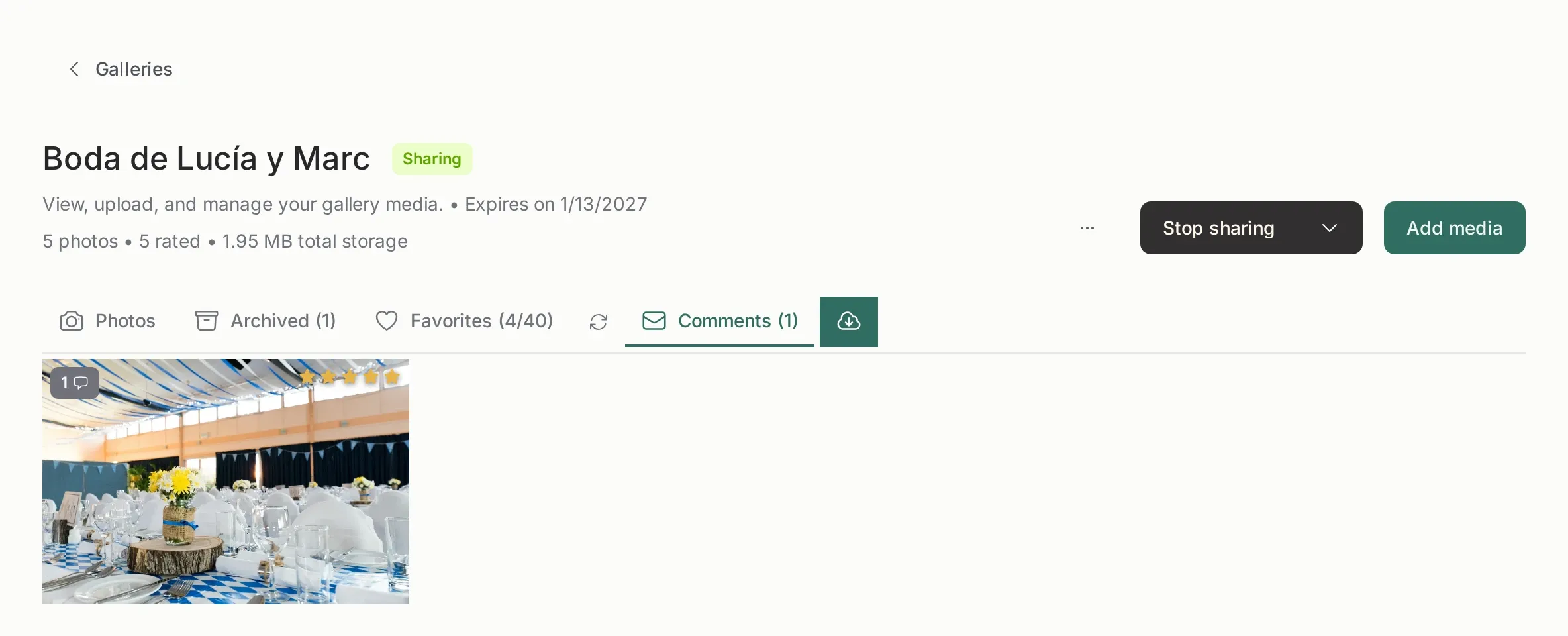
Section titled “Two related features”Comments are text attached to a photo. The client writes something like “can we crop this one?” and you read it in the panel next to the gallery.
Annotations are comments pinned to a point or a rectangle on the image. Instead of “the sky in the third photo”, the client draws a box around the sky.
Comments come first, annotations on top. Enabling annotations turns comments on automatically; disabling comments turns annotations off. They cannot be inverted.
Where you read them
Section titled “Where you read them”- The gallery gets a Comments tab with everything the client wrote.
- Each photo shows its comments and pins in the viewer.
- New comments generate a notification, so you do not have to poll the gallery.
What the client can do
Section titled “What the client can do”- Write a comment on a photo.
- See their own comments and the ones you reply with.
- Draw a pin or a box on the image when annotations are on.
- Delete their own comment (yours, only you).
They cannot see your internal notes, your ratings, other clients’ comments or the email trail you keep in the customer record.
Annotations and versions
Section titled “Annotations and versions”A pin is drawn on a specific version of the photo. If you upload a corrected version, the old pin stays attached to the old version and the panel tells you which version it belongs to. That is what makes “move the crop two centimeters” understandable after a re-edit instead of a mystery.
When to enable them
Section titled “When to enable them”- Comments on for any gallery where the client may want to talk about a photo. It replaces a long email thread.
- Annotations on for retouching, cropping or cleanup work, where “here” is faster than a description.
- Both off for a pure delivery gallery. You still get the favorites, which is usually all you need.
Practical advice
Section titled “Practical advice”Ask the client to comment instead of sending a separate email with a screenshot: the comment lives next to the photo and never gets lost. For a selection session, annotations plus the selection limit give you a precise brief without a single call.