

Shoot straight to a gallery
Why upload from the camera
Section titled “Why upload from the camera”Dragging 3,000 photos into a browser after a wedding is slow and fragile. With a direct upload, the camera (or the tethering software) pushes files as you shoot, and the gallery is already complete when you finish.
This works with any camera or app that can send files over FTP or SFTP. On a Canon, for example, it is the built-in FTP transfer; on a Sony, the transfer app; on a computer, the tethering software.
Set it up once
Section titled “Set it up once”-
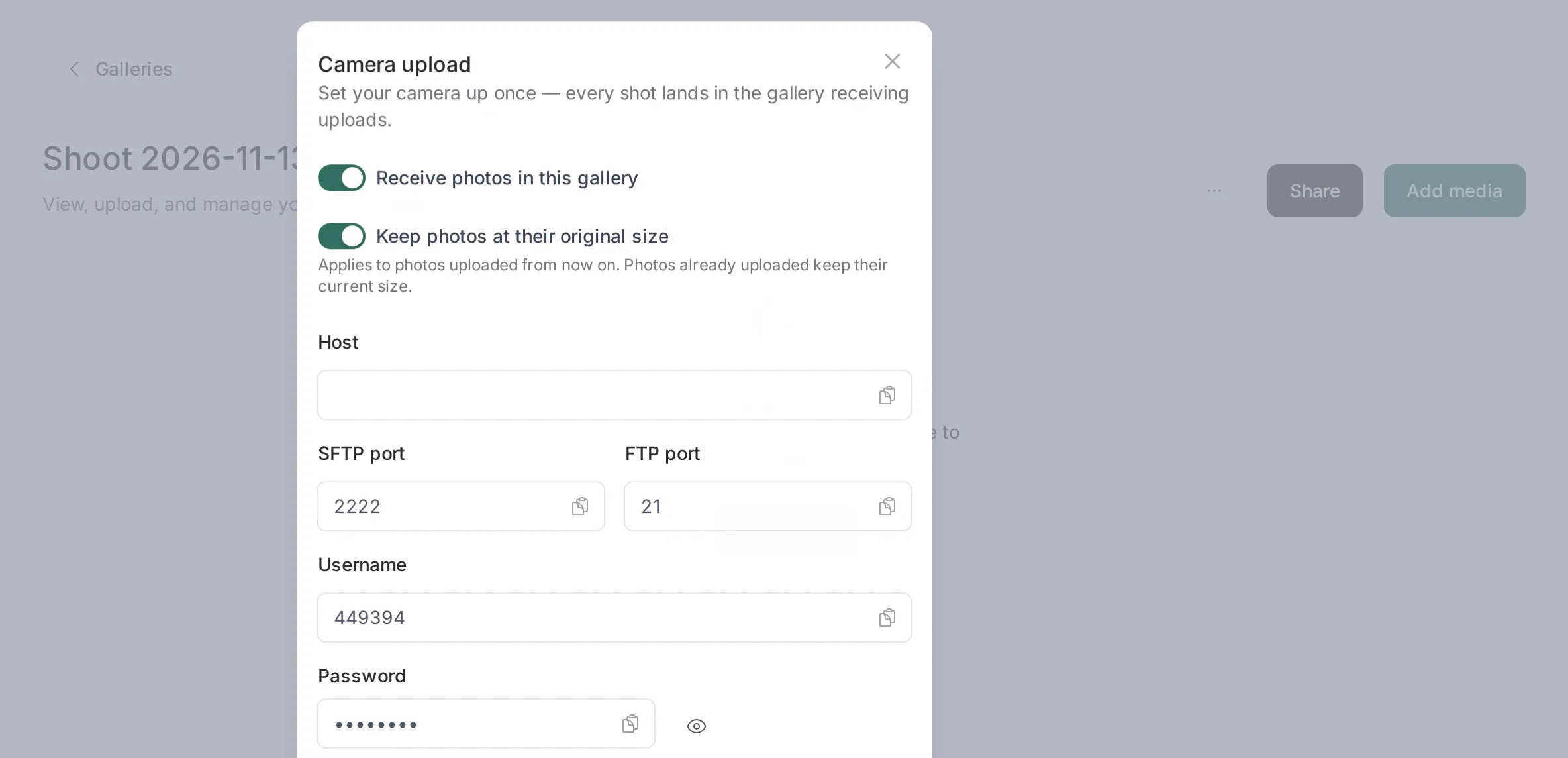
In Galleries, open the camera upload dialog and press Connect camera. Picstome creates the FTP/SFTP account and shows the host, user and password.
-
Copy those values into the camera or the tethering app. The destination folder is the only path you need to keep.
-
Take a test shot. The photo appears in the gallery within seconds, marked as processing until conversion finishes.
The live shoot mode
Section titled “The live shoot mode”Start live shoot reuses today’s empty gallery, or creates one numbered for the day, and points the camera there. It is designed for the wedding or event where you want one gallery per session without naming folders by hand.
The gallery page updates itself while you shoot, so an assistant can watch the photos arrive from another device.
RAW or JPEG
Section titled “RAW or JPEG”Shoot RAW+JPEG and send the JPEG only. The JPEG uploads in a fraction of the time and the client can open it. The RAW stays on your card for editing.
Picstome accepts RAW over FTP too, and it keeps the RAW when the gallery is in original size mode. For a live delivery, JPEG is almost always the right choice.
When storage runs out
Section titled “When storage runs out”This is the important safety net. If the studio hits its storage limit during a shoot:
- Picstome pauses the camera account and stops importing.
- The files already in the inbox are deleted, so nothing is stored unbilled.
- You receive one email telling you how many shots were discarded.
- The gallery shows a banner while the open tab is live.
Uploads resume automatically once space is available again. Nothing resumes silently in the background: you have to free space or upgrade first.
Some tethering setups delete the card after a successful upload. That is why the email tells you the number of discarded shots: it is the only way to know those photos exist only on the card.
When it does not work
Section titled “When it does not work”- The photo never appears: check that the camera writes to the inbox folder and that the account is not paused. The dialog shows the last connection state.
- The gallery fills with out-of-focus shots: the camera is sending everything. Limit the transfer in the camera to the photos you want to deliver.
- Duplicate names: the second file becomes a version of the first, not a new photo.