

Original size or optimized
The switch
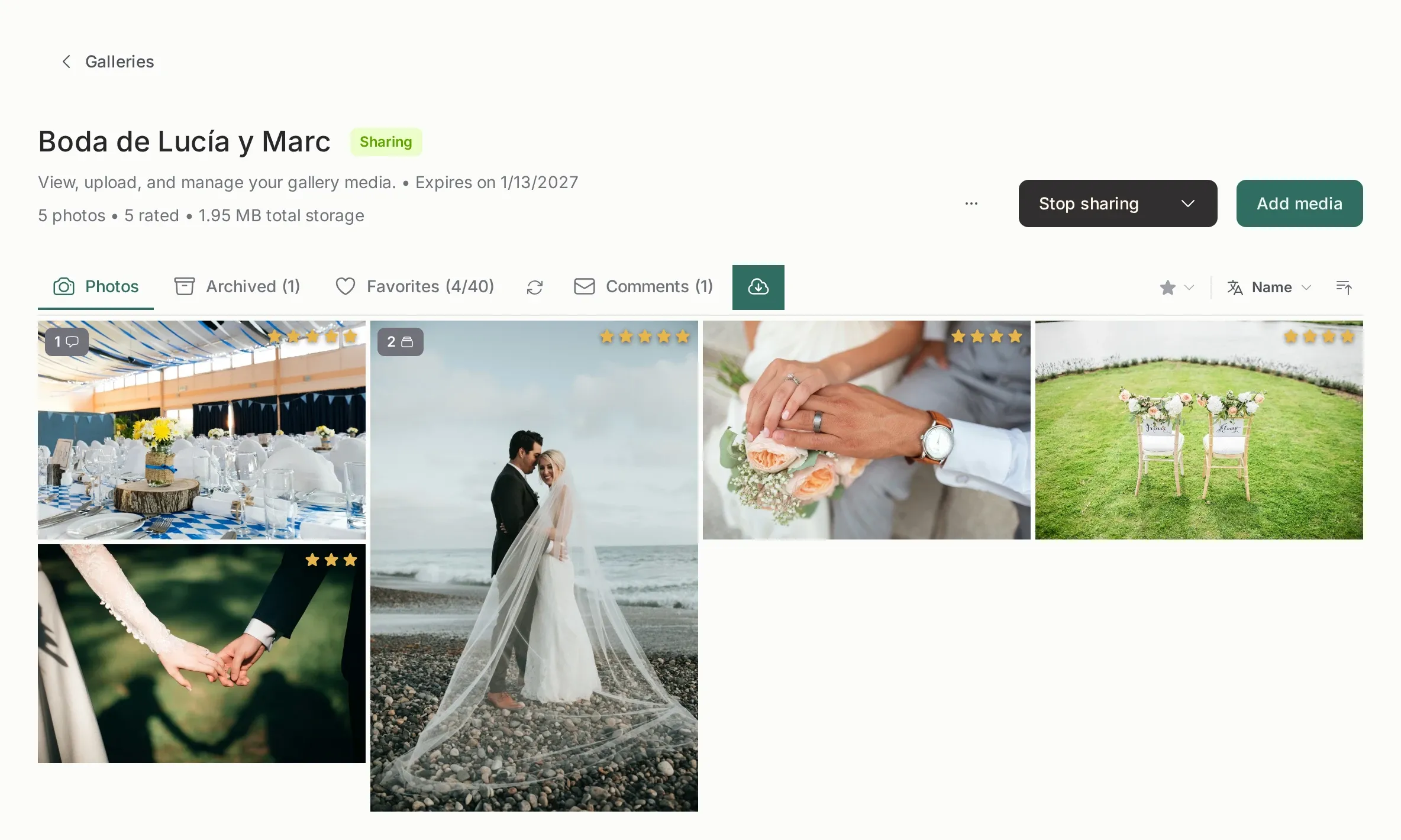
Section titled “The switch”Every gallery has an Original size option, set when you create it and changeable later. It answers one question: what do I keep on the server?
| Optimized (default) | Original size | |
|---|---|---|
| What is stored | A web copy around 2048 px on the long edge | Your file, unchanged |
| Storage used | Small | Large |
| Client download quality | The web copy | The full file |
| RAW handling | Extracted JPEG is stored, the RAW is not | The RAW is kept |
| Maximum upload | Normal | Capped by a pixel limit |
Why the default is optimized
Section titled “Why the default is optimized”Because the client is looking at photos on a screen. A 60 MB TIFF and a 1 MB JPEG look the same in a browser at 1400 px wide, and the JPEG loads instantly while the TIFF does not.
Optimized also protects your work: the version you deliver is a reasonable size, and the original stays on your disk.
When to turn it on
Section titled “When to turn it on”- The client explicitly needs the full files as delivered from the camera.
- You are using the gallery as a working copy between you and your retoucher.
- You sell the digital negatives and the gallery is the delivery channel.
Do not turn it on just because it sounds safer. It multiplies storage usage, and the free plan has 1 GB.
What “original” does not mean
Section titled “What “original” does not mean”It does not mean the RAW is shown or downloadable by the client in a shared gallery. RAW files are for your own workflow and for the desktop apps; the shared page renders images, videos and PDFs.
Changing it later
Section titled “Changing it later”You can toggle it per gallery from the edit dialog. The change applies to new uploads. Files already processed in the other mode are not reprocessed automatically, so a gallery can temporarily contain a mix. If you need every photo in the new mode, re-upload the files you care about.
The switch is per gallery, and your last choice becomes the default for the next one you create.